ZOOM MUSIC AUDIO SETTINGS
ZOOM MUSIC AUDIO SETTINGSNote: Different devices operate slightly differently once the Zoom app is opened, so I have made these instructions as universal as possible. Zoom often has minor updates which change the appearance of the settings pages, but the content should be the same. Please be sure to have the latest version downloaded. Please test out your set up with ample time before we meet to allow our first meeting to go as smoothly as possible. Feel free to reach out with questions in case you have problems with set up -- I am always happy to help!PHONES & IPADS1. Open Zoom app & log into meeting2. Click the "settings" menu (you may need to select "more" first to find "settings")3. Click “Audio”4. Select "Original sound for musicians" (there should be a checkmark next to it if selected)LAPTOP/COMPUTER
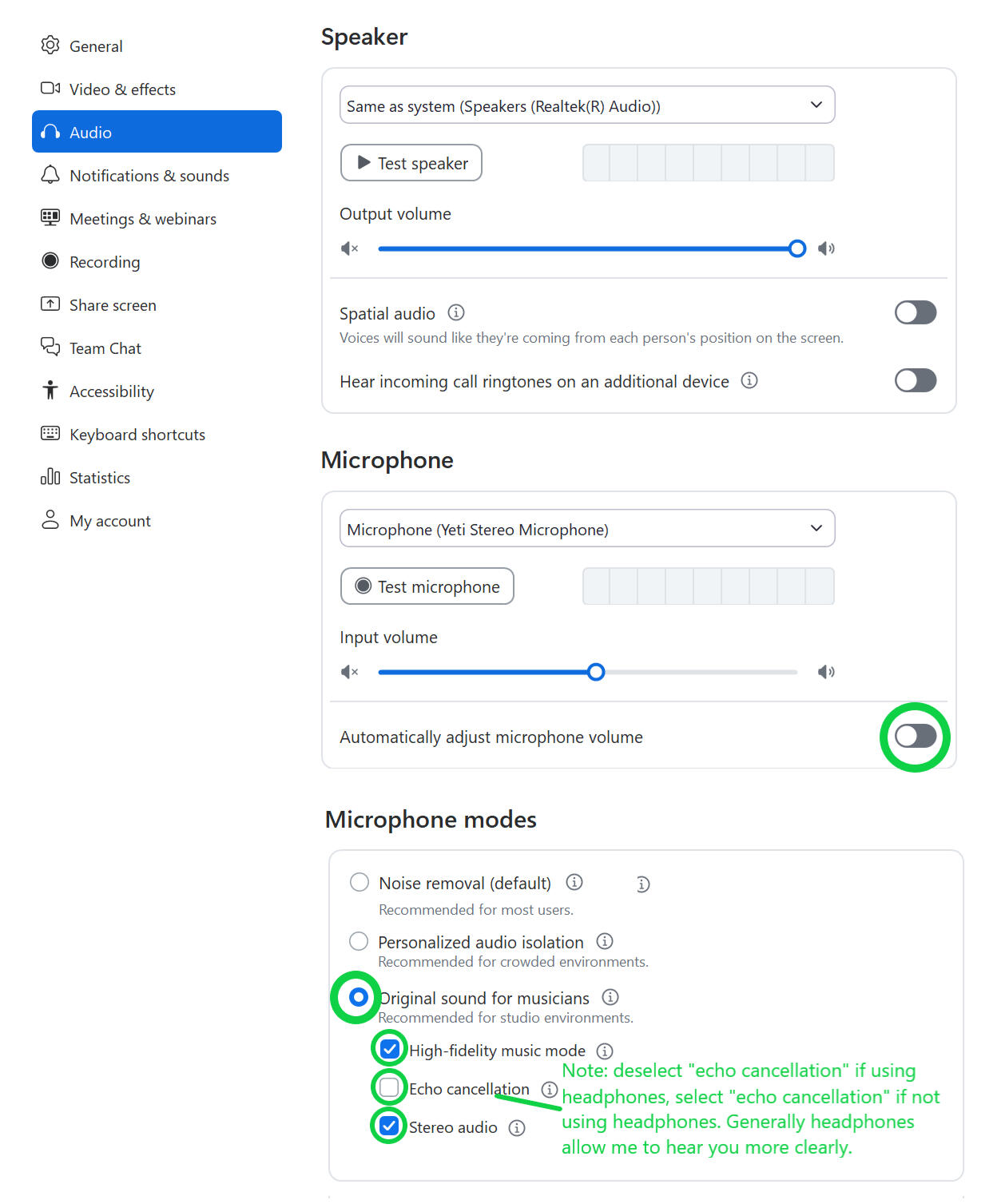
**Your audio settings should match the green circled boxes in the image below. Below are instructions to help you match the image.1. Open your Zoom app and find the "settings" menu (It can usually be found after clicking your photo/initials icon although there are other ways to access it.)2. Click the "audio" tab from the left side menu3. Scroll down to “Microphone”
- Make sure “Automatically adjust microphone volume” is NOT selected4. Scroll down to “Microphone modes”
- Select “Original sound for musicians”
- Select all three options (“High fidelity music mode”, “Echo cancellation” and “Stereo audio”)Note: For best audio quality, wear headphones and deselect "echo cancellation"5. Now you may exit the audio settings window and join the zoom meeting and you should be good to go!
TIPS FOR BEST SET UP
PRIMARY DEVIDE OPTIONS
- Any reliable smart phone, tablet, laptop, computer etc. with the updated Zoom app.OPTIONAL SECOND DEVICE
- For playing backing tracks, opening sheet music/lyrics or recording your voiceINTERNET & PREVENTATIVE MESAURES
- Firstly, don't worry if something doesn't go perfectly as we will work out glitches together! Please be sure to test a location with reliable internet before starting your lessons by doing a thorough test video call in the area where you are planning to have your online lessons to make sure your internet connection is strong and reliable. Also test that your audio (speakers/headphones and microphone) are working properly.- Close any extra programs you are running on your device so the only thing running is your video call. Also make sure no one else on your WiFi is streaming/doing anything that would contribute to poor internet connection. If you need to restart your WiFi router, this is the perfect time to do it!- Though not required, a back up device, headphones, a separate internet source (ethernet plug/WiFi/cellular data) are all nice to have handy just in case we ever need a quick fix (if this is a reasonable option for you).AUDIO
- Wearing headphones during your lessons helps me hear you more clearly. This is not always necessary, so if you strongly prefer not to wear them we can test this out, but please have some handy just in case. This is mostly dependent on the video calling algorithms and your specific device/setup. I generally recommend having one earbud in so you can still hear yourself clearly. Also, if a parent wants to listen in on the lesson, they can share the other earbud.- A simple external microphone can help me hear you more clearly. Some internal microphones are fine, but if I have any issues hearing you during your lesson, I may recommend you set an external one up if you have not already. A headphone & microphone set up is usually optimal.PHYSICAL SET UP
- Standing is optimal when singing. Aim to set up your device so you can stand up straight and not have to bend down to look at it.- Make sure your device is charged up or plugged in for your lesson.
© Untitled. All rights reserved.